How to Optimize Home Wi-Fi for Seamless 4K Streaming
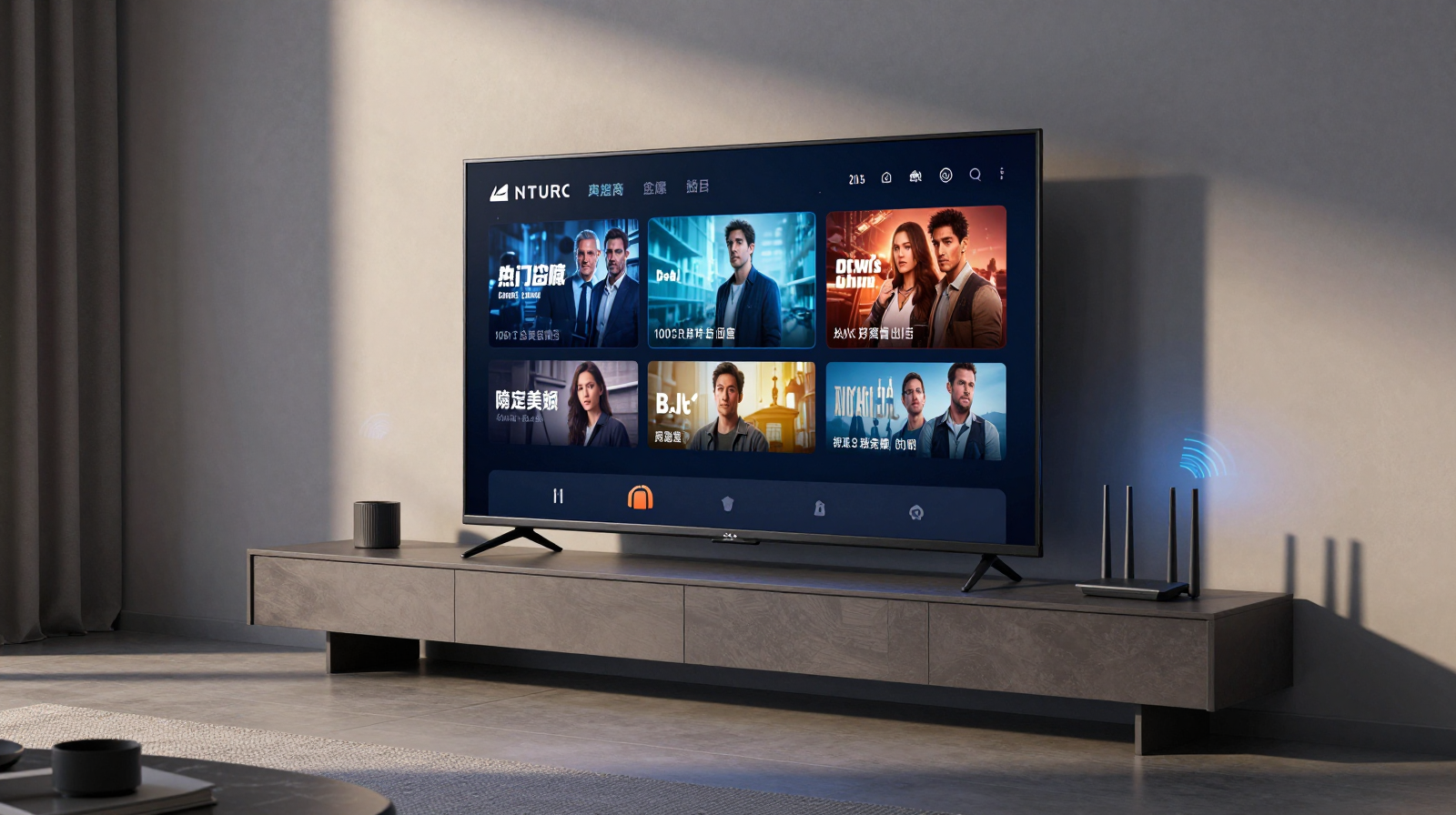
4K streaming issues are rarely caused by one dramatic failure. More often, they come from multiple small inefficiencies: poor router placement, crowded channels, overloaded network traffic, and inconsistent signal quality at the TV location. The good news is that most homes can achieve reliable 4K playback without expensive enterprise hardware. You need a clear optimization process and realistic expectations.
Understand the Real Requirement
Streaming services publish target bitrates, but real performance needs headroom. If one 4K stream needs roughly 20-30 Mbps depending on codec and content complexity, your network should sustain more than that at the TV location, not only near the router. Add overhead for phones, cloud sync, smart-home updates, and background downloads.
Router Placement First, Settings Second
Place the router centrally and elevated, not behind a TV cabinet or inside a metal shelf. Physical obstruction and multipath reflections can reduce usable throughput even when bars look strong. If your TV sits far from the router, test a modest relocation before buying new hardware; placement changes often deliver the largest gain per effort.
Band and Channel Strategy
5 GHz vs 2.4 GHz
Use 5 GHz for nearby high-bandwidth streaming when possible. It offers more capacity but shorter range. Keep 2.4 GHz for low-bandwidth or distant devices.
Channel congestion
In dense neighborhoods, automatic channel selection can still land on crowded ranges. Use router diagnostics to identify cleaner channels and retest at peak evening hours.
QoS and Traffic Prioritization
Quality of Service can protect streaming quality when other activities spike. Prioritize your streaming device or media category, especially in households with heavy gaming or large file transfers. QoS cannot fix weak signal, but it can reduce buffering during contention events.
Mesh Systems and Ethernet Backhaul
If your home layout defeats single-router coverage, mesh can help. For best results, use Ethernet backhaul between nodes when possible. Wireless backhaul is convenient but can reduce total available throughput under load. Position nodes where they still receive strong signal from upstream, not at dead zones.
Device-Level Optimizations
- Keep TV firmware and streaming apps updated.
- Disable unnecessary background app auto-play features.
- Restart streaming hardware occasionally to clear memory issues.
- Use wired Ethernet for TV if a clean cable route is feasible.
Many buffering complaints are partly device-side, not purely Wi-Fi-side.
Troubleshooting Sequence
- Test speed at router and at TV location.
- Check packet stability during evening peak usage.
- Temporarily pause other heavy network tasks.
- Try alternative DNS and confirm ISP stability.
- If needed, add node or switch to wired path.
Conclusion
Seamless 4K streaming depends on consistency more than peak speed. Start with placement, then tune channel and traffic behavior, and finally upgrade topology only if needed. A measured approach produces stable playback, fewer interruptions, and better overall network quality for the entire household.
Advanced Stability Improvements
After basic optimization, stability can often be improved with small policy changes. Schedule large cloud backups for overnight windows, limit auto-update behavior on less critical devices, and separate IoT gear onto its own SSID where possible. This protects media traffic from sudden bursts that cause buffering at peak hours.
ISP and Modem Considerations
Your Wi-Fi may be healthy while the WAN link is unstable. Check modem logs for frequent reconnect events and signal warnings. If the ISP modem-router combo performs poorly, use bridge mode with a stronger standalone router when available. This gives better control and often more consistent throughput under load.
Validation: What “Good” Looks Like
- 4K streams start quickly and hold quality without frequent resolution drops.
- No repeated buffering during evening high-traffic windows.
- Stable latency while other household devices remain active.
- Consistent performance across multiple streaming services.
When these conditions are met, your network is optimized for real life, not just speed-test screenshots. Keep a quarterly maintenance review and you will preserve performance as your device count grows.
Smart TV Placement and RF Interference
Large TVs, soundbars, and media cabinets can block or reflect Wi-Fi signals in subtle ways. If your stream quality drops after furniture changes, retest signal at the TV location. Avoid placing routers directly behind large metal-backed displays. A one-meter relocation can dramatically improve real throughput and reduce buffering frequency.
Combine good placement with periodic channel checks, and your network will remain resilient as neighboring Wi-Fi environments change.
Keep a simple network diary for one week after each change. Noting peak-hour behavior helps separate real improvements from temporary fluctuations and leads to smarter long-term tuning.
If multiple people stream simultaneously, consider setting per-device bandwidth limits for background devices. This preserves headroom so primary screens maintain stable 4K quality.
Document your final settings so recovery after router resets takes minutes, not hours.