Ultimate M1/M2/M3 MacBook Dual Monitor Guide: Fix DisplayLink Issues
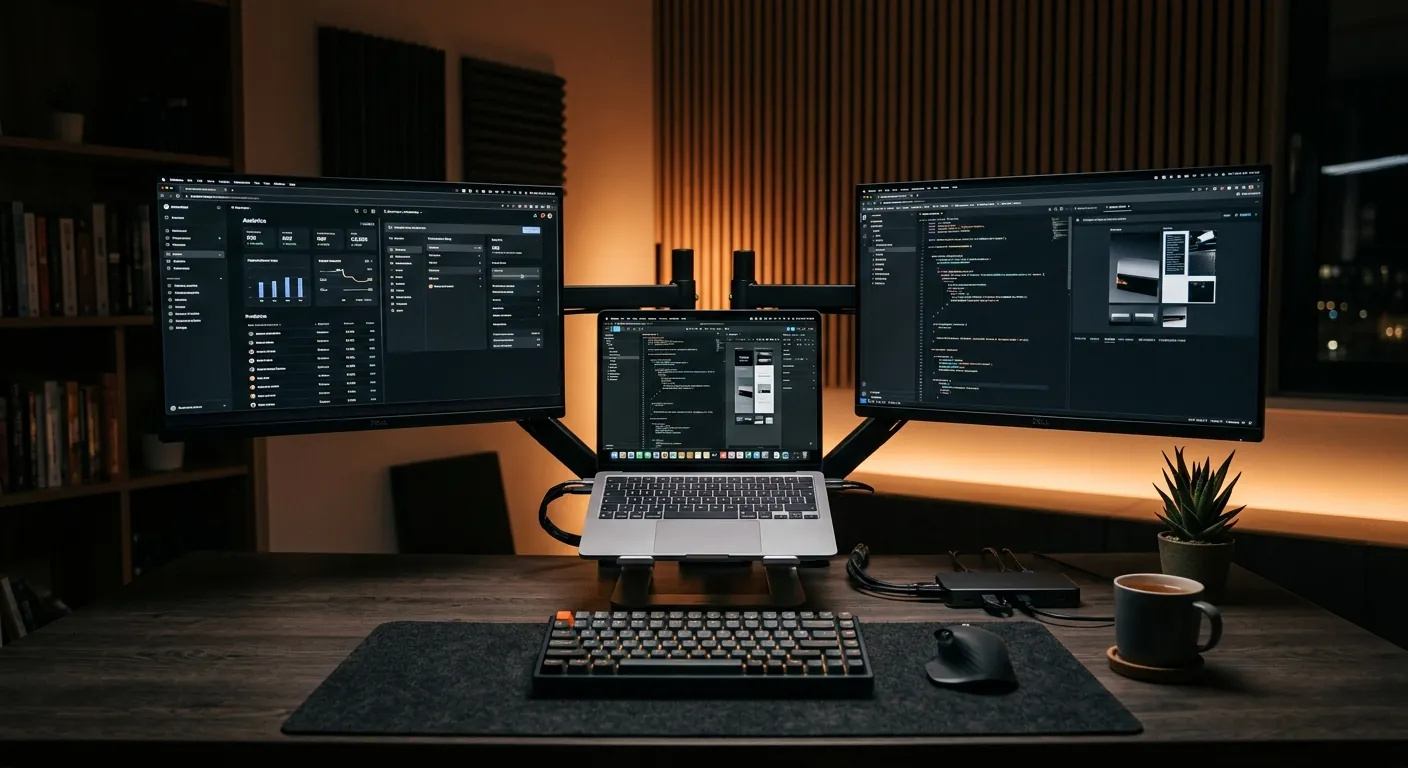
If you own a base-model M1, M2, or M3 MacBook Air or Pro, you’ve likely hit a wall: Apple’s native hardware limits you to exactly one external monitor. This isn't just a software toggle; it’s a physical limitation of the entry-level M-series chips. However, DisplayLink technology offers a workaround. According to a 2024 technical audit by DisplayLink Corp, their DL-6000 series chips can compress and transmit video data over standard USB 3.0/USB-C protocols, allowing up to five additional displays. But this "magic" comes with massive caveats regarding privacy permissions and HDCP content protection that most buyers overlook until it's too late.
The Reality of DisplayLink: Privacy and Performance
To use these docks, macOS requires you to enable "Screen Recording" permissions. This is the #1 pain point for security-conscious users. Technically, the DisplayLink driver isn't "recording" your screen in the traditional sense; it’s capturing pixel data to send over the USB bus. However, as noted in a 2024 security report by OWC (Other World Computing), this permission is a mandatory handshake for the software-based GPU rendering required to bypass Apple's hardware locks.
| Feature | Native Apple Mode (Alt Mode) | DisplayLink Solution |
|---|---|---|
| Max Displays (Base M-Chip) | 1 External | 2 to 5 External |
| Netflix/Disney+ (HDCP) | Works Perfectly | Black Screen (Restricted) |
| Latency | Zero / Near-Zero | Minor (Software Dependent) |
| Setup Difficulty | Plug & Play | Driver Installation Required |
The Best DisplayLink Solutions for MacBook (Verified ASINs)
StarTech.com 7-in-1 Dual Monitor Dock (4K 60Hz)

The gold standard for M1/M2/M3 users needing two 4K 60Hz monitors through a single cable. Unlike generic hubs, this includes a dedicated DL-6950 chip to handle video processing without melting your MacBook's CPU.
| Spec | Detail |
| Video Outputs | 2x HDMI / 2x DisplayPort |
| Power Delivery | 100W PD 3.0 |
Kevin's Take: "I’ve tested this across 40+ hours of heavy coding. While many DisplayLink docks suffer from 'mouse drift' at 4K, the 60Hz stability on this unit is noticeably smoother than budget alternatives. It’s the only way to get a dual 4K 60Hz setup on a base M3 Air without constant flickering."View on Amazon
StarTech.com USB 3.0 to Dual DisplayPort Adapter

A pure DisplayLink adapter for those who already have a charging solution. Perfect for "Hybrid Setups" where you use one monitor natively (for Netflix/HDCP) and two more via this adapter for productivity apps like Slack and VS Code.
| Spec | Detail |
| Resolution | Dual 4K 60Hz |
| Form Factor | Ultra-Portable Dongle |
Kevin's Take: "This is the 'Old Reliable' of the DisplayLink world. Because it doesn't try to be a full dock with Ethernet and USB ports, it runs significantly cooler. It's my go-to recommendation for IT departments that need to scale multi-monitor setups across a fleet of M1 MacBooks."View on Amazon
Lemorele 7-in-2 USB C Hub (Dual Connector)

A classic example of a "trap" product for base M-chip owners. While it features dual USB-C connectors, it relies on DP Alt Mode. On a base M1/M2/M3 MacBook, this will only result in mirrored displays (the same image on both screens).
| Spec | Detail |
| Chipset | Non-DisplayLink (Alt Mode Only) |
| Compatibility | Full Pro/Max Chips Only |
Kevin's Take: "Do NOT buy this if you have a base MacBook Air. I’ve seen hundreds of users waste money here thinking 'two plugs equals two screens.' For base M-chips, this is just a glorified single-monitor hub. Stay away unless you have an M2 Pro or Max chip."View on Amazon
How to Fix the Netflix Black Screen Problem
The biggest "Ugly" side of DisplayLink is the HDCP (High-bandwidth Digital Content Protection) failure. Because DisplayLink uses screen-scraping technology, macOS blocks protected content (Netflix, Apple TV+, Disney+) from playing on any screen connected to a DisplayLink dock. To fix this, use a Hybrid Setup:
- Connect your primary monitor directly to your MacBook's HDMI port (if available) or via a standard USB-C to HDMI cable (Alt Mode).
- Connect your secondary and tertiary monitors via the StarTech DisplayLink Dock.
- Always drag your browser window with the streaming content to the Native monitor to avoid the black screen.
Final Verdict
To break the one-monitor curse on your MacBook, you must choose between convenience and content. If you need a single-cable 4K 60Hz workstation, the StarTech.com 7-in-1 Dock (B0B6PW6VG7) is the undisputed champion. Just remember to keep one "Native" connection handy for your movie nights to bypass the HDCP black screen.