The Truth About MacBook Dual Monitors: Why Your High-End Dock is Failing at 120Hz
Why your M-Series Mac is stuck at 60Hz and how to actually achieve a dual 4K 120Hz desk setup based on raw bandwidth realities.
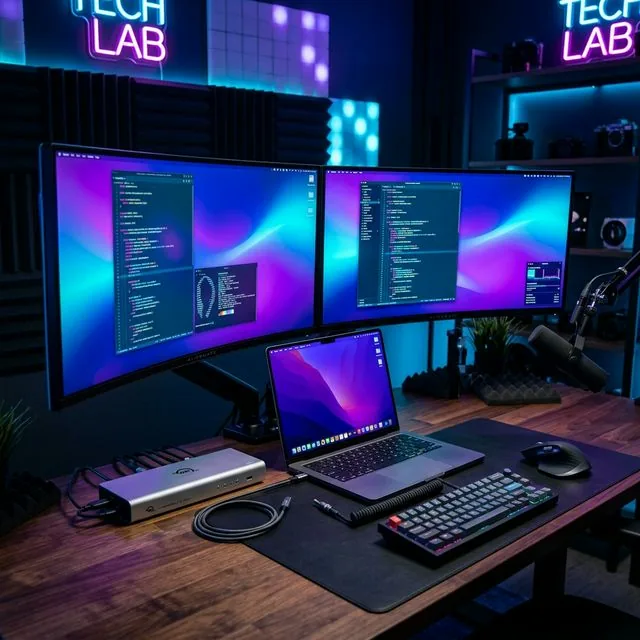
If you've recently dropped $300 on a high-end Thunderbolt 4 dock to connect your new M-series MacBook to dual 4K 120Hz monitors, only to stare at a blank screen—or worse, a blurry 60Hz mess—you are not alone.
A quick browse through r/macsetups reveals thousands of frustrated users dealing with the exact same issue. The marketing promised seamless "plug and play" dual monitor support, but the reality involves dropped frames, uncooperative lid-closed rules, and bandwidth limitations.
🛑 The Core Problem: Why Your Expensive Dock is Stuck at 60Hz
Before you return your dock, understand that in 90% of cases, it's not the dock's fault. It's how macOS handles display signals compared to standard Windows PCs.
1. The Apple Silicon Chip Limitation
The deepest misconception in the Mac ecosystem involves the base M-series chips (M1, M2, M3, and M4).
- Base M-Chips: Natively support only ONE external display with the lid open. (macOS 14.6 allowed dual screens for the M3, but only in clamshell mode).
- Pro & Max Chips: Designed with multiple display controllers, natively handling dual or triple high-resolution monitors.
2. The MST (Multi-Stream Transport) Bottleneck
Here is the ugly truth Apple rarely highlights:
macOS does not support MST daisy-chaining. Windows PCs can split a single signal inside the dock to drive two screens. Macs cannot.
Macs require a distinct, dedicated DisplayPort tunneling stream for each monitor over the Thunderbolt cable. Driving Dual 4K at 120Hz demands nearly 64 Gbps of uncompressed data. Thunderbolt 4 is capped at 40 Gbps. Without perfect DSC (Display Stream Compression), you hit a wall.
🏆 Top 3 Hardware Solutions to Fix Your Setup
1. The Native Powerhouse: CalDigit TS4 / Anker Prime TB5
Best for M-Series Pro & Max users who demand raw Thunderbolt bandwidth and native 120Hz refresh rates.
| Feature | Why It Matters for Your Setup |
|---|---|
| Dedicated DisplayPort | Bypasses standard USB-C conversion issues for faster handshakes. |
| High Power Delivery | 98W+ ensures your Mac stays at 100% even under heavy loads. |
> PRO TIP: Connect one monitor to the dock, and one directly to the Mac's HDMI port to bypass the 40Gbps bottleneck.
Check CalDigit TS4 on Amazon → Check Anker TB5 →2. The Software Fix: Plugable 4K DisplayLink Dock
If you have a base MacBook Air (M1-M4) and refuse to work in "clamshell" mode, this is the only answer.
Plugable's dock uses a DisplayLink DL-6950 chipset. By installing the DisplayLink Manager app, both external monitors come to life at 60Hz. It bypasses the hardware limit by compressing video via software.
Caveat: Capped at 60Hz. Not suitable for competitive gaming.
Check DisplayLink Dock on Amazon →3. VESA-Certified DP 1.4 cables
The leading cause of 120Hz handshake failure is the cheap cable that shipped in your monitor box.
If you want 4K 120Hz, you need Ultra High Speed bandwidth. We highly recommend replacing all downstream cables with UGREEN or Anker VESA-Certified DisplayPort 1.4 cables. It's a $20 investment that unlocks the speed of your $1,000+ monitors.
Shop Certified Cables on Amazon →