The Ultimate Desk Setup Guide for Mac mini & MacBook Pro Users
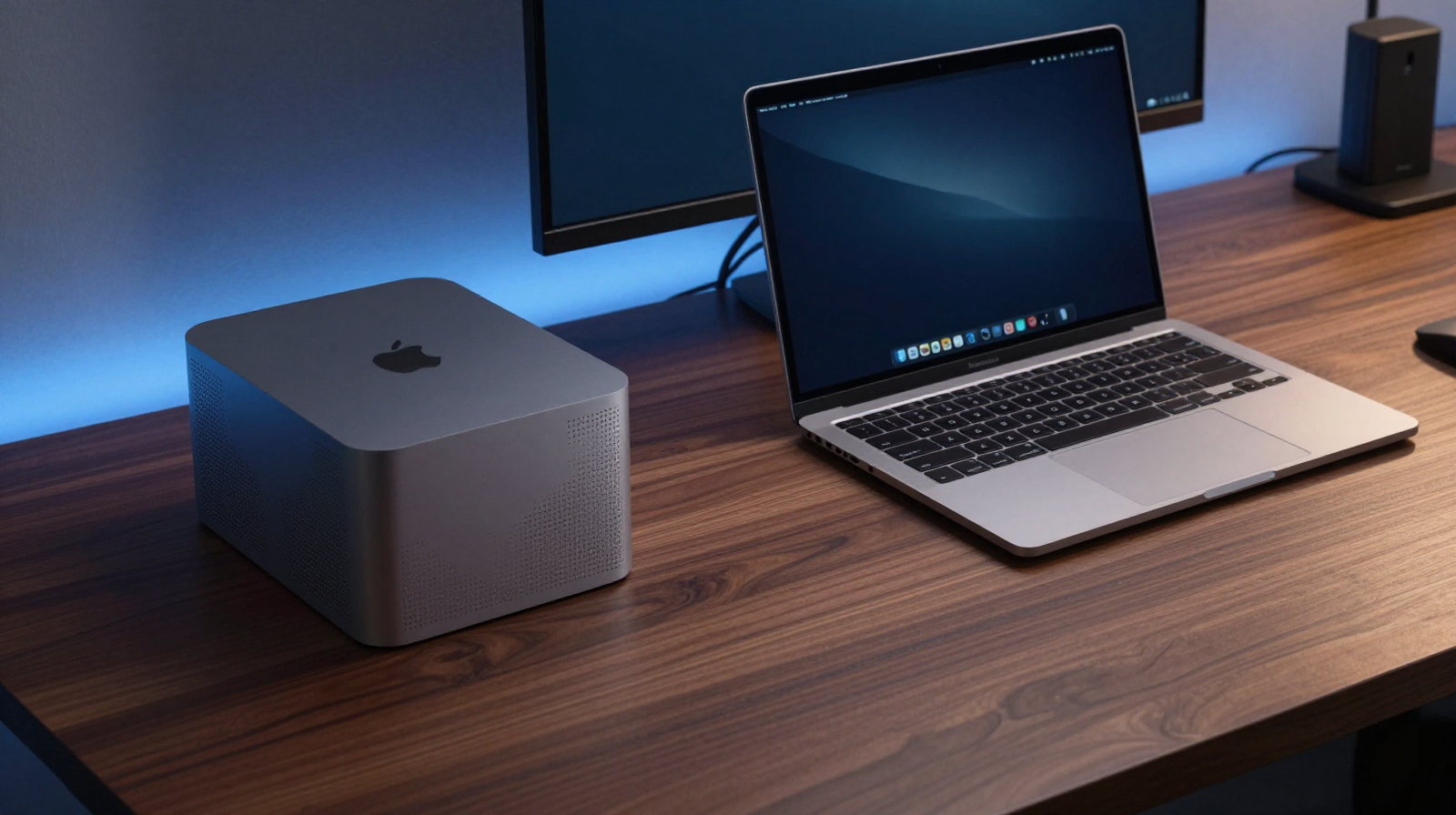
Many people treat the Mac mini and MacBook Pro as separate workflows, but the best setup strategy is to make them feel like one coherent system. The Mac mini gives you excellent always-on performance for heavy tasks, while the MacBook Pro provides mobility and battery-backed flexibility. A premium desk setup should make switching between those modes feel frictionless, not like reconnecting your entire life every morning. This guide focuses on practical decisions that improve speed, comfort, and visual clarity without overcomplicating your desk.
Start With a Workflow Map, Not Shopping
Before buying anything, list the three things you do most: coding, video editing, design, writing, trading, data work, or meetings. Then define where each machine fits. For example, many users keep the Mac mini as the primary desktop for sustained performance and use the MacBook Pro in clamshell mode during desk sessions. Others keep the laptop open as a secondary display for communication and references. Your setup should be built around your daily task sequence, not around social media desk photos.
A simple map might be: morning planning on MacBook Pro, focused production on Mac mini, and evening review back on MacBook Pro. That one decision determines your monitor inputs, dock requirements, and keyboard switching method.
Display Strategy: The Centerpiece Decision
Choose size by viewing distance
At arm’s length, 27-inch to 32-inch displays are the sweet spot for most desks. If you write code all day, crisp text and uniform brightness matter more than extreme refresh rates. If you edit video, prioritize color consistency and connectivity. Look for USB-C plus HDMI/DisplayPort so both Mac devices can connect cleanly.
One monitor vs dual monitor
A single excellent monitor is usually better than two average ones for minimalist setups. Dual displays can be great for specific workflows, but they also increase cable complexity, heat, and attention fragmentation. If you do go dual, use matched panel sizes and identical heights to reduce neck strain.
Docking and I/O: Reduce Daily Friction
The fastest setup is one where a single cable handles power, display, and data for the laptop while the Mac mini remains permanently wired. A reliable Thunderbolt dock can centralize SSDs, audio interface, Ethernet, SD card, and peripherals. If your monitor provides enough ports, you may only need a compact hub and a USB switcher for keyboard and mouse sharing. Fewer adapters generally means fewer random disconnects.
Hardwire Ethernet for the Mac mini whenever possible. Even excellent Wi-Fi can introduce latency spikes during cloud sync, large uploads, or remote sessions. Keep mission-critical connections wired and leave wireless for convenience devices.
Input Devices and Ergonomics
For long desk sessions, comfort compounds over time. Use a keyboard angle that keeps wrists neutral, and position your pointing device close to your body line. If you prefer Apple Magic Keyboard for low-profile typing, pair it with a supportive wrist posture and frequent breaks. If you prefer mechanical switches, choose quieter options and a moderate actuation force to reduce fatigue.
Monitor height matters more than people think: your eye line should land near the top third of the display. Add a monitor arm when desk depth is limited, since it reclaims usable surface area and helps you fine-tune posture.
Power, Cable Management, and Desk Cleanliness
Cable management is not just aesthetics; it directly affects maintainability. Group cables by function: power, data, audio, and temporary charging. Route each group with labels and leave service loops so devices can move without unplugging everything. Mount a power strip under the desk and avoid stacking adapters on the floor where dust and accidental kicks become constant risks.
Use consistent cable lengths. Mixed lengths create unnecessary visual noise and tension points. Braided sleeves or channels can hide complexity while keeping access practical for future upgrades.
Audio and Lighting for Focus
Good audio improves perceived quality of your entire workspace. Nearfield speakers on isolation pads or a clean headphone setup both work, but avoid cluttered hybrid systems unless you truly need them. For lighting, combine diffuse ambient light with one controllable task source. Neutral white for daytime work and warmer tones in the evening reduce eye strain and improve consistency on camera calls.
Pros & Cons of a Dual-Mac Setup
Pros
- Desktop-class stability from Mac mini plus mobile flexibility from MacBook Pro.
- Cleaner task separation for focused deep work.
- Easier backup workflow and redundancy if one device is unavailable.
Cons
- Higher upfront cost than a single-device setup.
- More cable and port planning required.
- Potential peripheral switching friction without proper dock strategy.
Recommended Setup Checklist
Compare prices for core accessories before finalizing your desk build.
Check Price on AmazonFinal Recommendation
The best Mac mini + MacBook Pro desk setup is not necessarily the most expensive one. It is the one that removes repetitive friction, supports healthy posture, and keeps your attention on output instead of troubleshooting. Invest first in display quality, connectivity reliability, and ergonomics. Then refine aesthetics with lighting and cable discipline. Done well, your desk becomes a performance environment rather than a collection of gadgets.